Settings
 Fast Delivery
 Free Shipping
 Incoterms
 Payment Types


 Marketplace Product

Mfr Part # A000066
ARDUINO UNO R3 ATMEGA328P BOARD
Arduino

License: GNU Lesser General Public License Microcontrollers Arduino ESP32
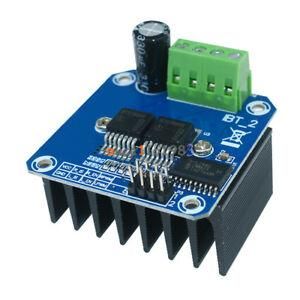
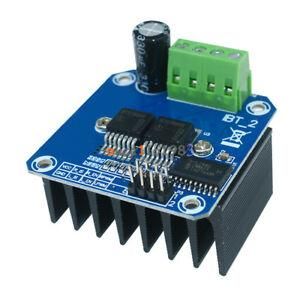
In this tutorial, we are going to learn how to control a DC motor using Arduino and a DC driver BTS7960B.
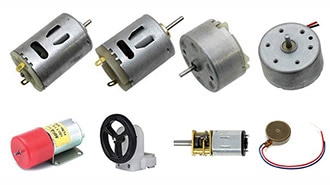
The motor can be a 350W or just a small toy Arduino DC motor as long as its power doesn't exceed the BTS7960B driver's max current.
Watch the video!
Learn more about Visuino: What is Visuino
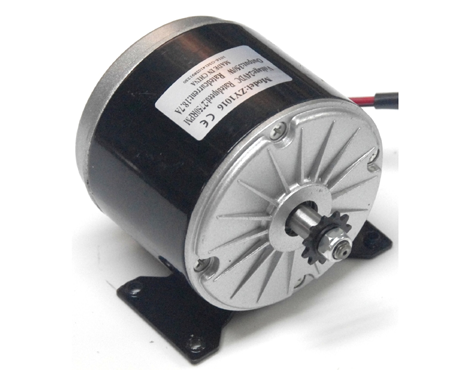
Rated output power: 350W. Rated voltage: 24/36V DC
Rated speed 2750 RPM.
No-load speed 3300 RPM
Full load current = 19.20A.
No-load current = 2.5A
Rated Torque: 1.11 N.m (11.1 kg.cm).
Stall Torque 5.55 N.m (55.11 kg.cm) Efficiency = 78%

Specification:
Double BTS7960 large current (43 A) H-bridge driver;
5V isolated with the MCU, and effectively protects the MCU;
5V power indicator on board; voltage indication of motor driver output end; can solder heat sink;
Just need four lines from the MCU to the driver module (GND, 5V, PWM1, PWM2);
isolation chip 5 V power supply (can share with MCU 5 V); Size: 4 * 5 * 1.2 cm;
Able to reverse the motor forward, two PWM input frequency up to 25kHZ; two heat flow passing through an error signal output; isolated chip 5V power supply (can be shared with the MCU 5V); can also use the on-board 5V supply; the supply voltage 5.5V to 27V
Arduino Uno or any other Arduino board
DC Motor Driver BTS7960B
A DC Motor could be small or something more powerful, like in this experiment
Power supply for the motor
Potentiometer
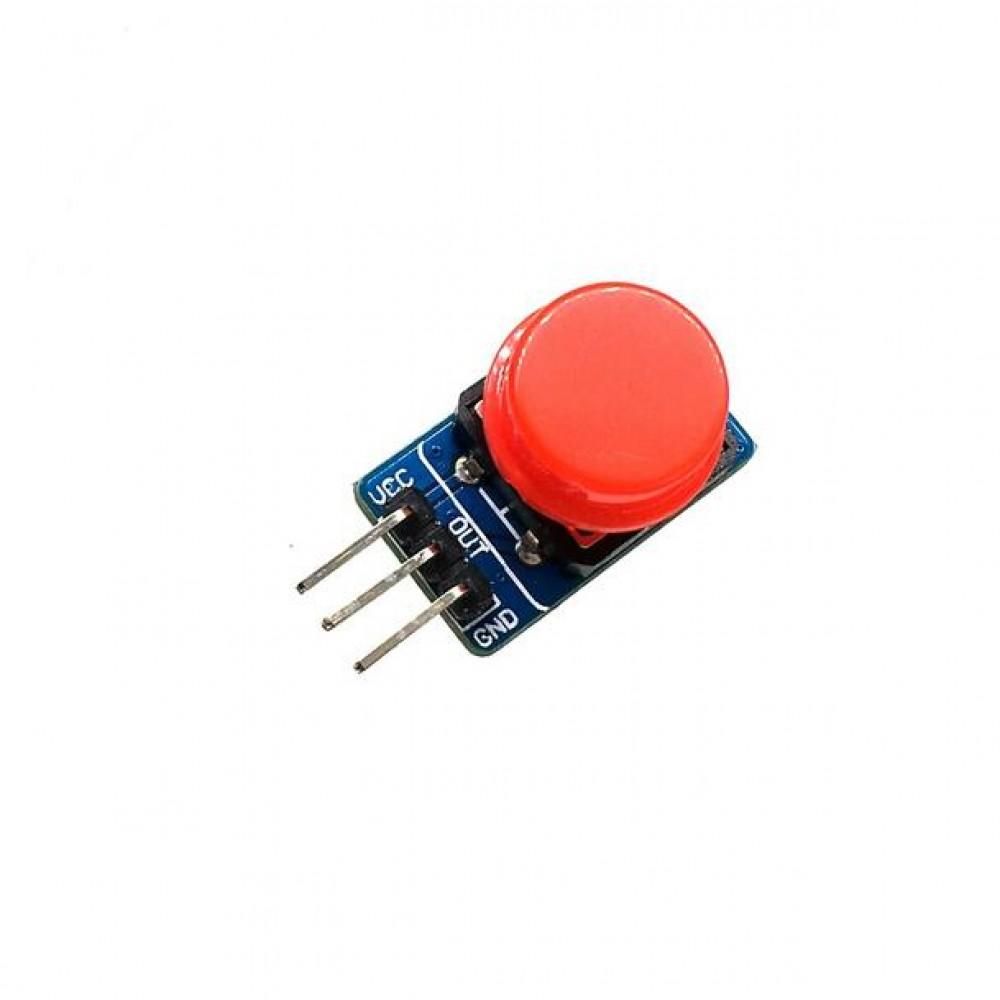
2X Button
Jumper wires
Breadboard
Visuino software: Download here
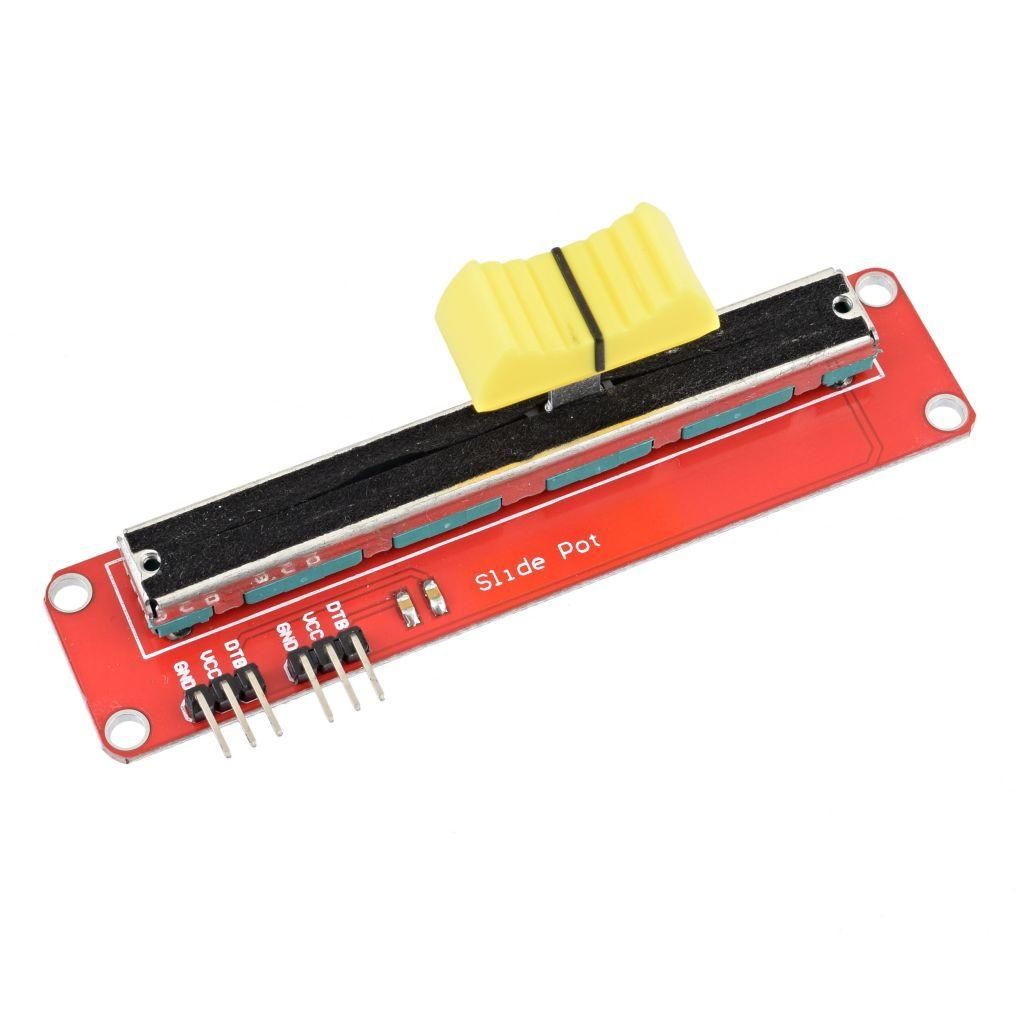
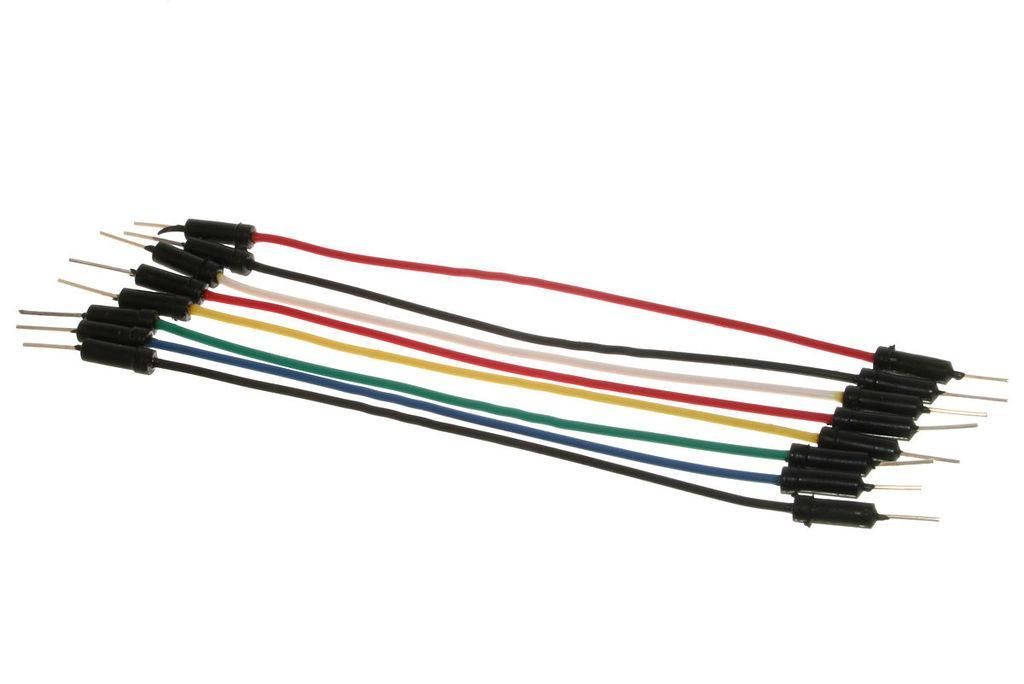
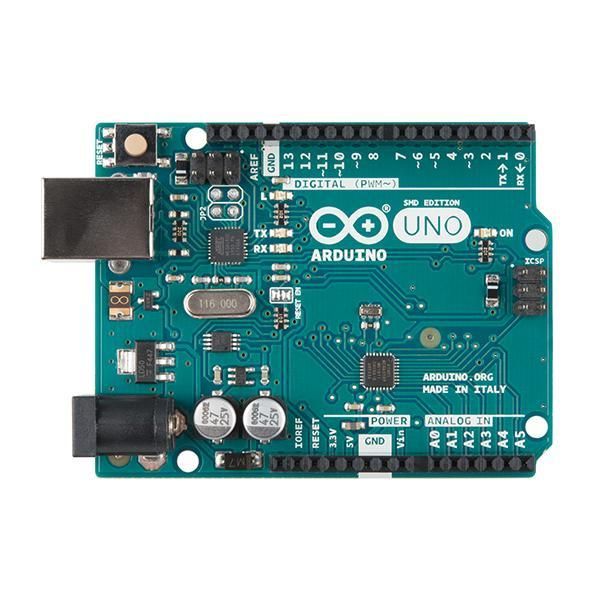
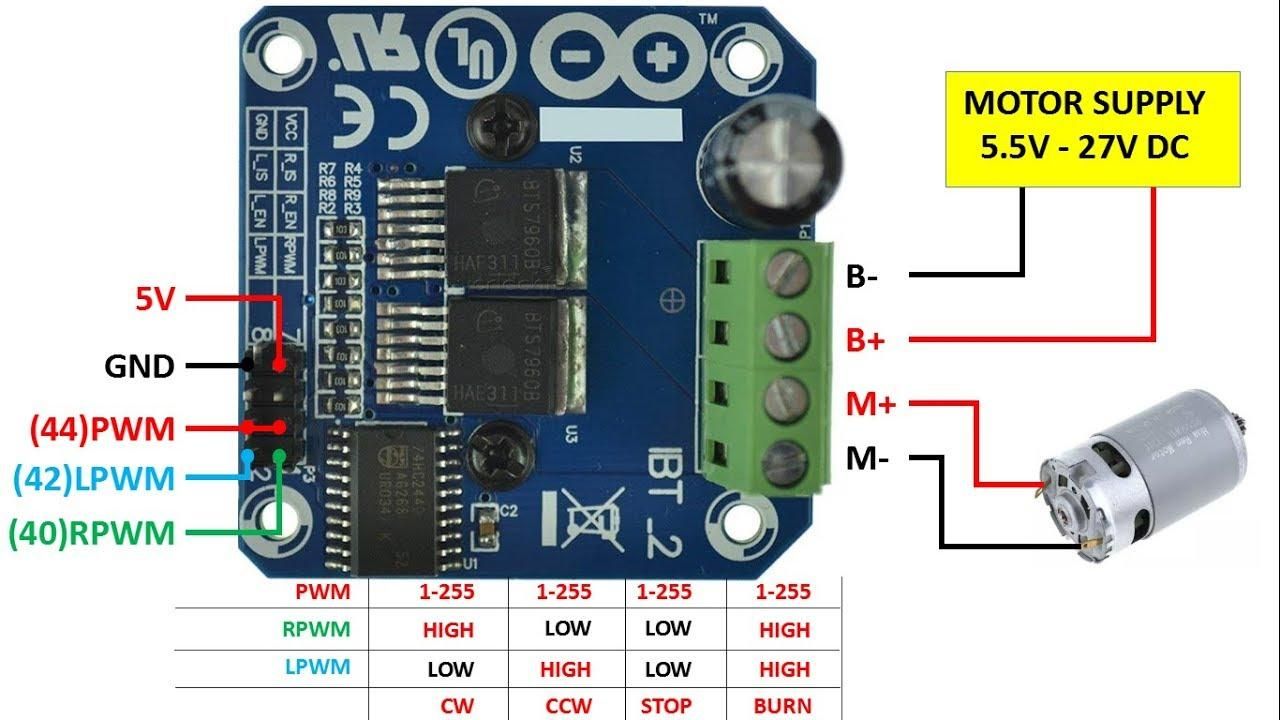
Connect Arduino digital pin [3] to the BTS7960 driver pin RPWM
Connect Arduino digital pin [3] to the BTS7960 driver pin LPWM
Connect Arduino digital pin [4] to the BTS7960 driver pin R_EN
Connect Arduino digital pin [3] to the BTS7960 driver pin L_EN
Connect the BTS7960 pin VCC to the Arduino analog pin 5V.
Connect the bts7960 pin GND to Arduino Pin GND
Connect the power supply pin GND (-) for the motor to the BTS7960 driver pin B-
Connect the power supply pin VCC (+) for the motor to the BTS7960 driver pin B+
Connect the motor positive wire to the BTS7960 driver pin M+
Connect the motor negative wire to the BTS7960 driver pin M-
Connect the potentiometer pin OTB to Arduino Analog Pin A0
Connect the potentiometer pin VCC to the Arduino analog pin 5V.
Connect the potentiometer pin GND to Arduino Pin GND
BUTTON1: Connect pin 1 to Arduino pin 5V
BUTTON2: Connect pin 1 to Arduino pin 5V
BUTTON1: Connect pin 2 to Arduino digital pin 8 and to a 1kΩ resistor; connect the other pin on the resistor to Arduino pin GND
BUTTON2: Connect pin 2 to Arduino digital pin 9 and to a 1kΩ resistor. Connect the other pin on the resistor to the Arduino pin GND

The Visuino: https://www.visuino.eu also needs to be installed. Download the free version or register for a free trial.
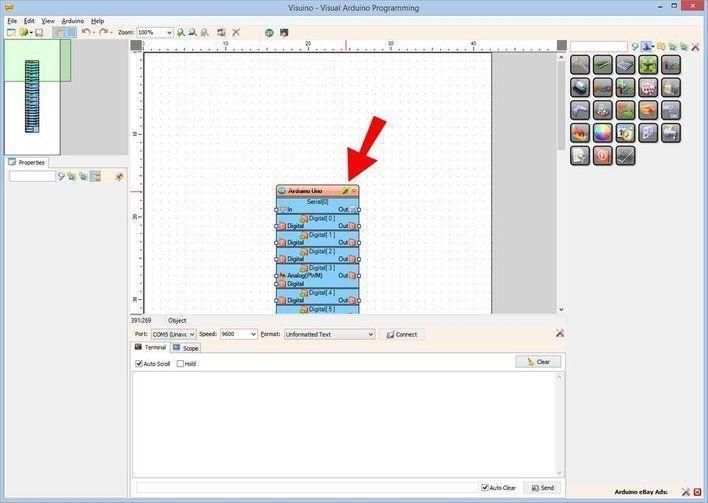
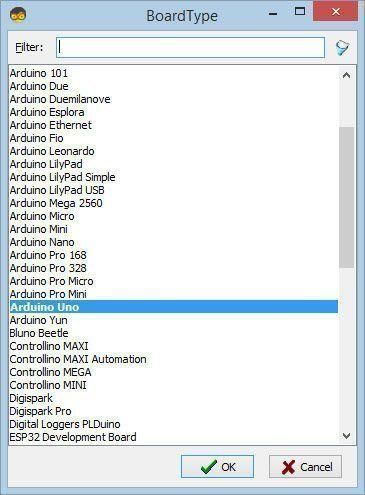
Start Visuino as shown in the first picture. Click on the "Tools" button on the Arduino component (Picture 1) in Visuino. When the dialog appears, select "Arduino UNO" as shown in Picture 2
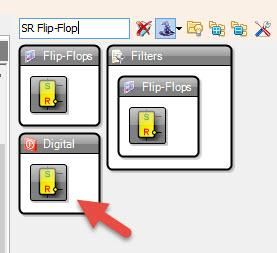
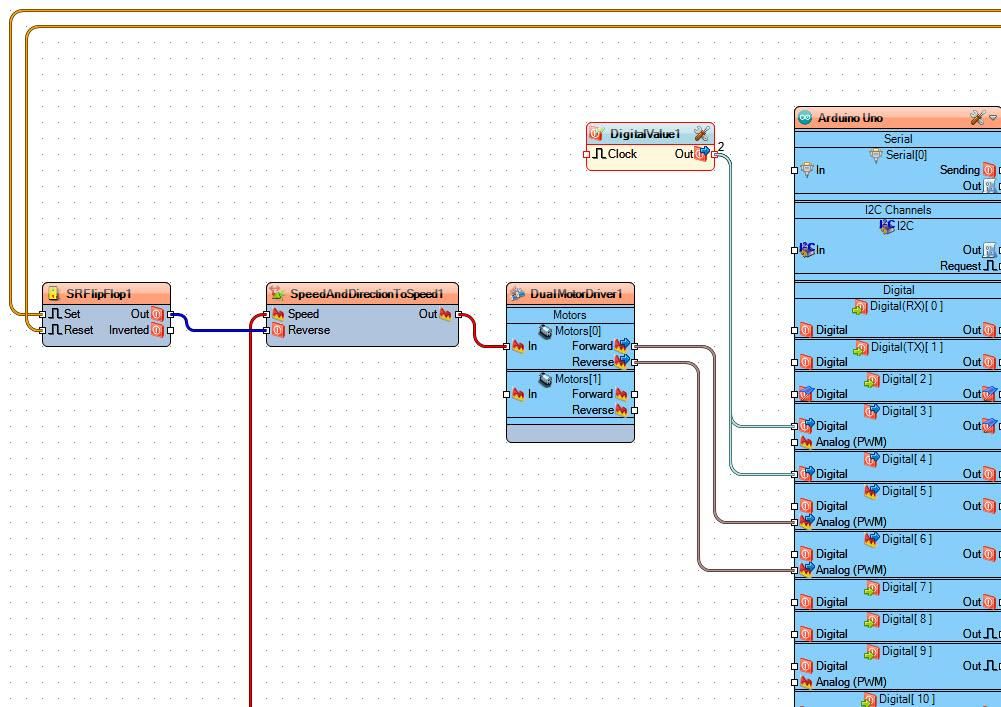
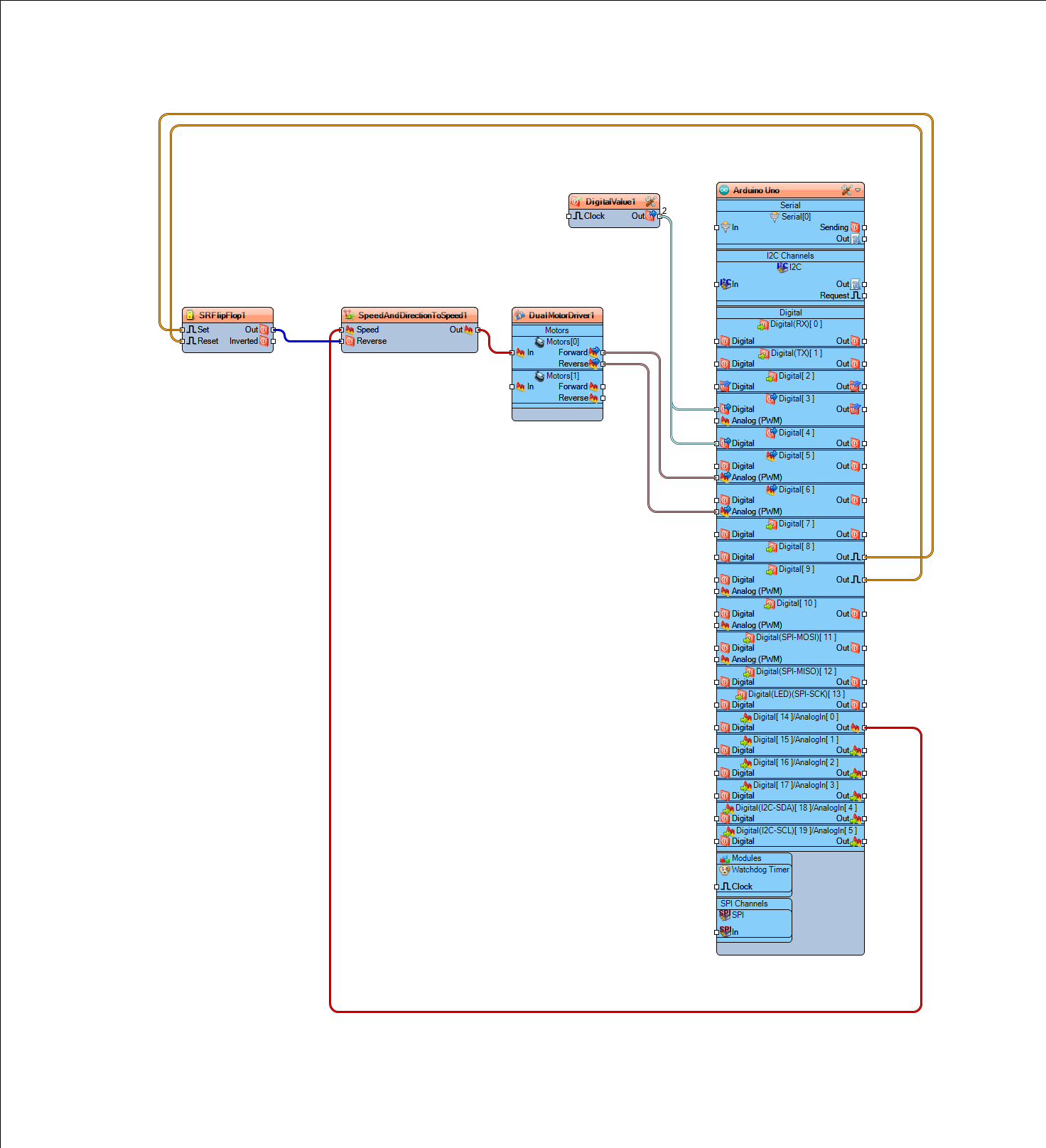
Add "SR Flip-Flop" component
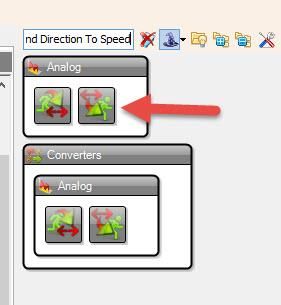
Add "Speed and Direction To Speed" component
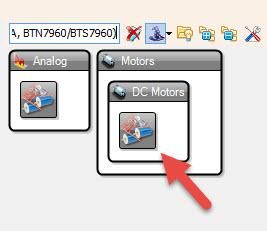
Add "Dual DC Motor Driver 2 PWM Pins Bridge (L9110S, L298N, AM1016A, BTN7960/BTS7960)" component
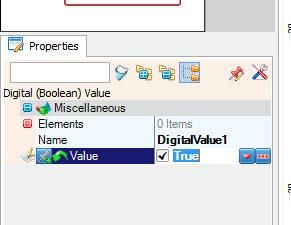
Add "Digital (Boolean) Value" component
Select "DigitalValue1" and in the properties window set "Value" to True. This will enable the driver; setting it to false will disable the motor driver, and the motor will not spin
Connect Arduino digital pin 8 to "SRFlipFlop1" pin "Set"
Connect Arduino digital pin 9 to "SRFlipFlop1" component pin "Reset"
Connect "SRFlipFlop1" pin Out to "SpeedAndDirectionToSpeed1" pin "reverse"
Connect Arduino Analog pin 0 to "SpeedAndDirectionToSpeed1" pin "Speed"
Connect "SpeedAndDirectionToSpeed1" pin Out to "DualMotorDriver1" pin "Motors[0] > In
Connect "DualMotorDriver1" pin "Motors[0] > Forward to Arduino digital pin 5
Connect "DualMotorDriver1" pin "Motors[0] > Reverse to Arduino digital pin 6
Connect "DigitalValue1" pin Out to Arduino digital pin 3 and digital pin 4
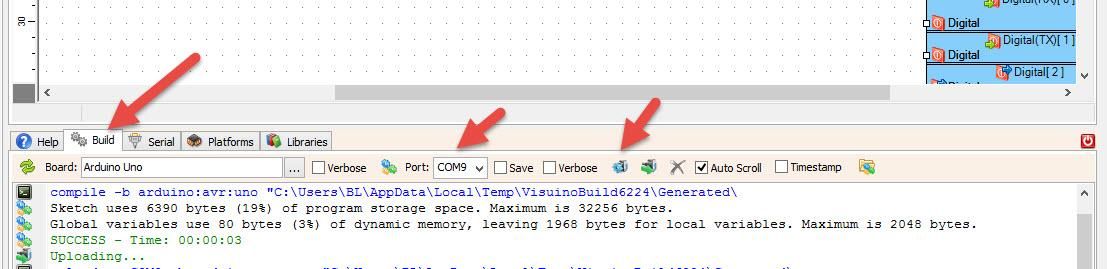
In Visuino, at the bottom, click on the "Build" tab, make sure the correct port is selected, then click on the "Compile/Build and Upload" button.
If you power the Arduino UNO module, the motor will start to spin; you can adjust the speed with a potentiometer or change the direction by pressing the buttons.
Congratulations! You have completed your project with Visuino. Also attached is the Visuino project that I created for this. You can download it and open it in Visuino: https://www.visuino.eu