Settings
 Fast Delivery
 Free Shipping
 Incoterms
 Payment Types


 Marketplace Product

Mfr Part # SC1631
RASPBERRY PI PICO 2 RP2350
Raspberry Pi

Microcontrollers Raspberry Pi MCU
In this tutorial, we'll learn how to create a reusable library (crate) in Rust by extracting our TMP102 sensor code into a separate package that can be shared across multiple projects. Libraries in Rust are self-contained units of code that define types, functions, and traits without a main() function, as they're meant to be imported and used by other applications rather than run directly.
Note that all code for this series can be found in this GitHub repository.
We'll take the I2C temperature sensor code from our previous tutorial and refactor it into a proper driver library that uses generics and the embedded-hal traits, making it compatible with any microcontroller that implements the standard I2C interface. This approach mirrors how real embedded Rust development works: drivers are published as separate crates on crates.io, allowing the community to share platform-agnostic code that works across different hardware.
To create a reusable library in Rust, we'll use Cargo to generate a new crate. Navigate to your libraries directory and run:
cd workspace/libraries
cargo new tmp102-driver --lib --vcs none
The --lib flag tells Cargo to create a library crate rather than a binary application, and --vcs none prevents Cargo from initializing Git version control since we're already inside a workspace repository. This creates a project structure with src/lib.rs as the main entry point instead of src/main.rs. While a Rust crate can have only one library (though it may consist of multiple files compiled together into a single public interface), it can optionally include multiple binary targets for examples and testing.
The src/lib.rs file is where we'll define our public API: the types, functions, and traits that users of our library will interact with. Unlike application crates that have a main() function as their entry point, library crates simply expose functionality that other crates can import.
Your directory structure should be as follows:
tmp102-driver/
├── src/
│ └── lib.rs
└── Cargo.toml
We’ll specify our dependencies in Cargo.toml, as we’ve done in previous tutorials.
[package]
name = "tmp102-driver"
version = "0.1.0"
edition = "2024"
[dependencies]
embedded-hal = "1.0"
Note that we just include embedded-hal = "1.0", which provides the I2C trait definitions our driver will use. This minimal dependency on embedded-hal is what makes our driver platform-agnostic: any HAL that implements the embedded-hal::i2c::I2c trait can use our TMP102 driver without modification.
Next, we’ll implement the library:
#![no_std]

//! # TMP102 Demo Driver
//!
//! A simple demo driver for the TMP102 temperature sensor

use embedded_hal::i2c::I2c;

/// Custom error for our crate
#[derive(Debug)]
pub enum Error<E> {
    /// I2C communication error
    Communication(E),
}

/// Possible device addresses based on ADD0 pin connection
#[derive(Debug, Clone, Copy)]
pub enum Address {
    Ground = 0x48, // Default
    Vdd = 0x49,
    Sda = 0x4A,
    Scl = 0x4B,
}

impl Address {
    /// Get the I2C address in u8 format
    pub fn as_u8(self) -> u8 {
        self as u8
    }
}

/// List internal registers in a struct
#[allow(dead_code)]
struct Register;

#[allow(dead_code)]
impl Register {
    const TEMPERATURE: u8 = 0x00;
    const CONFIG: u8 = 0x01;
    const T_LOW: u8 = 0x02;
    const T_HIGH: u8 = 0x03;
}

/// TMP102 temperature sensor driver
pub struct TMP102<I2C> {
    i2c: I2C,
    address: Address,
}

impl<I2C> TMP102<I2C>
where
    I2C: I2c,
{
    /// Create a new TMP102 driver instance
    pub fn new(i2c: I2C, address: Address) -> Self {
        Self { i2c, address }
    }

    /// Create new instance with default address (Ground)
    pub fn with_default_address(i2c: I2C) -> Self {
        Self::new(i2c, Address::Ground)
    }

    /// Read the current temperature in degrees Celsius (blocking)
    pub fn read_temperature_c(&mut self) -> Result<f32, Error<I2C::Error>> {
        let mut rx_buf = [0u8; 2];

        // Read from sensor
        match self
            .i2c
            .write_read(self.address.as_u8(), &[Register::TEMPERATURE], &mut rx_buf)
        {
            Ok(()) => Ok(self.raw_to_celsius(rx_buf)),
            Err(e) => Err(Error::Communication(e)),
        }
    }

    /// Convert raw reading to Celsius
    fn raw_to_celsius(&self, buf: [u8; 2]) -> f32 {
        let temp_raw = ((buf[0] as u16) << 8) | (buf[1] as u16);
        let temp_signed = (temp_raw as i16) >> 4;
        (temp_signed as f32) * 0.0625
    }
}
We use documentation comments throughout: //! for inner doc comments that describe the entire crate, and /// for outer doc comments that document specific items like structs, enums, and functions. Rustdoc will automatically parse these comments to generate HTML documentation. This is a common practice, as it produces a standardized set of documentation, like you’ve seen for embedded-hal.
The core structure includes a custom Error<E>
The #[derive(...)] attribute tells the Rust compiler to automatically generate boilerplate code for common trait implementations. Instead of manually writing the code for traits like Debug, Clone, and Copy, you list them in the derive attribute, and the compiler generates standard implementations for you. For example, Debug creates code to format your type for printing, Clone generates a method to explicitly duplicate values, and Copy marks the type as safe to implicitly copy rather than move. This automation saves you from writing repetitive code while ensuring consistent, correct implementations of these common patterns.
The heart of the library is the TMP102<I2C>
The I2c trait (lowercase 'c') defines a contract with methods like write_read() that all I2C implementations must provide, though HALs can optionally override the default implementations. When we call methods on our driver, they work through this trait interface rather than directly accessing hardware. This practice greatly increases the portability of our library, as it allows the same driver code to run on an RP2350, STM32, ESP32, or any other microcontroller.
The read_temperature_c() method demonstrates how Result types work with generics for error handling. Its signature pub fn read_temperature_c(&mut self) -> Result<f32,Error>I2C::Error>> returns a Result enum that can be either Ok(f32) containing the temperature reading or Err(Error<i2c::Error>) containing our custom error.
The I2C::Error is an associated type: when you instantiate TMP102 with a specific I2C implementation from a HAL, I2C::Error becomes that HAL's specific error type. Inside the method, we use pattern matching on the result of write_read(): if it returns Ok(()) (where () is the unit type representing no meaningful value), we convert the raw data to Celsius and return Ok(temperature). If it returns Err(e), we wrap that error in our Error::Communication(e) variant and return it. This pattern of wrapping HAL-specific errors in a library-specific error type gives users better context about where errors originated while maintaining the generic flexibility that makes the driver work across platforms.
Now that we have our library, we'll create a demo application to test it with real hardware. This application is nearly identical to our previous I2C example, but instead of implementing all the sensor communication logic directly in main.rs, we'll import and use our tmp102-driver library.
Copy the USB serial project, as we'll be using USB serial communication to display sensor readings (just like we did for the I2C TMP102 tutorial). Navigate to your workspace directory and copy the entire usb-serial project:
cd workspace/apps
cp -r usb-serial tmp102-driver-demo
cd i2c-tmp102
If a target/ directory exists from previous builds, you can delete it to start fresh (though Cargo will handle rebuilding automatically):
rm -rf target
You should have the following directory structure for your demo application:
tmp102-driver-demo/
    ├── .cargo/
    │   └── config.toml
    ├── src/
    │   └── main.rs
    ├── Cargo.toml
    └── memory.x
We will only need to change Cargo.toml and main.rs, as config.toml and memory.x will remain the same.
Starting from a copy of the usb-serial project, we need to make a few changes to Cargo.toml.
[package]
name = "tmp102-driver-demo"
version = "0.1.0"
edition = "2024"

[dependencies]
rp235x-hal = { version = "0.3.0", features = ["rt", "critical-section-impl"] }
embedded-hal = "1.0.0"
cortex-m = "0.7.7"
cortex-m-rt = "0.7.5"
usb-device = "0.3.2"
usbd-serial = "0.2.2"
heapless = "0.8.0"
tmp102-driver = { path = "../../libraries/tmp102-driver"}

[profile.dev]

[profile.release]
opt-level = "s"
lto = true
codegen-units = 1
strip = true
First, update the package name from "usb-serial" to "tmp102-driver-demo". Next, add the heapless dependency that we need for formatting strings without heap allocation. Most importantly, add a path dependency to our local library using tmp102-driver = { path = "../../libraries/tmp102-driver"}. This tells Cargo to look for the library in our workspace's libraries directory rather than downloading it from crates.io.
The changes to main.rs are surprisingly minimal, as we are doing the heavy lifting for I2C communication in the library now.
#![no_std]
#![no_main]

// We need to write our own panic handler
use core::panic::PanicInfo;

// Alias our HAL
use rp235x_hal as hal;

// Bring GPIO structs/functions into scope
use hal::gpio::{FunctionI2C, Pin};

// USB device and Communications Class Device (CDC) support
use usb_device::{class_prelude::*, prelude::*};
use usbd_serial::SerialPort;

// I2C structs/functions
use embedded_hal::digital::InputPin;

// Used for the rate/frequency type
use hal::fugit::RateExtU32;

// For working with non-heap strings
use core::fmt::Write;
use heapless::String;

// Bring in our driver
use tmp102_driver::{Address, TMP102};

// Custom panic handler: just loop forever
#[panic_handler]
fn panic(_info: &PanicInfo) -> ! {
    loop {}
}

// Copy boot metadata to .start_block so Boot ROM knows how to boot our program
#[unsafe(link_section = ".start_block")]
#[used]
pub static IMAGE_DEF: hal::block::ImageDef = hal::block::ImageDef::secure_exe();

// Constants
const XOSC_CRYSTAL_FREQ: u32 = 12_000_000; // External crystal on board

// Main entrypoint (custom defined for embedded targets)
#[hal::entry]
fn main() -> ! {
    // Get ownership of hardware peripherals
    let mut pac = hal::pac::Peripherals::take().unwrap();

    // Set up the watchdog and clocks
    let mut watchdog = hal::Watchdog::new(pac.WATCHDOG);
    let clocks = hal::clocks::init_clocks_and_plls(
        XOSC_CRYSTAL_FREQ,
        pac.XOSC,
        pac.CLOCKS,
        pac.PLL_SYS,
        pac.PLL_USB,
        &mut pac.RESETS,
        &mut watchdog,
    )
    .ok()
    .unwrap();

    // Single-cycle I/O block (fast GPIO)
    let sio = hal::Sio::new(pac.SIO);

    // Split off ownership of Peripherals struct, set pins to default state
    let pins = hal::gpio::Pins::new(
        pac.IO_BANK0,
        pac.PADS_BANK0,
        sio.gpio_bank0,
        &mut pac.RESETS,
    );

    // Configure button pin
    let mut btn_pin = pins.gpio14.into_pull_up_input();

    // Configure I2C pins
    let sda_pin: Pin<_, FunctionI2C, _> = pins.gpio18.reconfigure();
    let scl_pin: Pin<_, FunctionI2C, _> = pins.gpio19.reconfigure();

    // Initialize and take ownership of the I2C peripheral
    let i2c = hal::I2C::i2c1(
        pac.I2C1,
        sda_pin,
        scl_pin,
        100.kHz(),
        &mut pac.RESETS,
        &clocks.system_clock,
    );

    // Instantiate our sensor struct
    let mut tmp102 = TMP102::new(i2c, Address::Ground);

    // Initialize the USB driver
    let usb_bus = UsbBusAllocator::new(hal::usb::UsbBus::new(
        pac.USB,
        pac.USB_DPRAM,
        clocks.usb_clock,
        true,
        &mut pac.RESETS,
    ));

    // Configure the USB as CDC
    let mut serial = SerialPort::new(&usb_bus);

    // Create a USB device with a fake VID/PID
    let mut usb_dev = UsbDeviceBuilder::new(&usb_bus, UsbVidPid(0x16c0, 0x27dd))
        .strings(&[StringDescriptors::default()
            .manufacturer("Fake company")
            .product("Serial port")
            .serial_number("TEST")])
        .unwrap()
        .device_class(2) // from: https://www.usb.org/defined-class-codes
        .build();

    // String buffer for output
    let mut output = String::<64>::new();

    // Superloop
    let mut prev_pressed = false;
    loop {
        // Needs to be called at least every 10 ms
        let _ = usb_dev.poll(&mut [&mut serial]);

        // Wait for button press
        let btn_pressed = btn_pin.is_low().unwrap_or(false);
        if btn_pressed && (!prev_pressed) {
            // Read from sensor
            let temp_c = match tmp102.read_temperature_c() {
                Ok(temp) => temp,
                Err(e) => {
                    output.clear();
                    write!(&mut output, "Error: {:?}\r\n", e).unwrap();
                    let _ = serial.write(output.as_bytes());
                    continue;
                }
            };

            // Print out value
            output.clear();
            write!(&mut output, "Temperature: {:.2} deg C\r\n", temp_c).unwrap();
            let _ = serial.write(output.as_bytes());
        }

        // Save button pressed state for next iteration
        prev_pressed = btn_pressed;
    }
}
At the top of the file, we add use tmp102_driver::{Address, TMP102}; to import our driver's public types. We remove the sensor-specific constants (TMP102_ADDR and TMP102_REG_TEMP) and the direct embedded_hal::i2c::I2c import since those details are now encapsulated in the library. The imports for GPIO configuration remain similar, though we no longer need to import the I2c trait directly. Our driver handles all the I2C communication internally.
The main differences in the code itself occur during I2C initialization and sensor reading. Instead of creating a generic i2c object and calling write_read() directly with raw register addresses and buffers, we now instantiate our driver with let mut tmp102 = TMP102::new(i2c, Address::Ground). This transfers ownership of the I2C peripheral to the driver, which will manage it internally.
When we want to read the temperature, we simply call tmp102.read_temperature_c(), which returns a Result<f32, Error<...>> instead of raw bytes. We use pattern matching to handle the result. On a success, we get the temperature directly in Celsius without needing to manually perform bit manipulation and conversion. If we get an error, we can format and display the error using Debug formatting with {:?}.
This cleaner API hides the complexity of register addresses, data formats, and conversion formulas, making the application code more readable and less error-prone while demonstrating how well-designed libraries can simplify embedded development.
Save all your work. In the terminal, build the program from the project directory:
cargo build
Next, convert your compiled binary file into a .uf2 file that can be uploaded to the RP2350’s bootloader. We can find our binary in the corresponding folder. In a terminal, enter:
picotool uf2 convert target/thumbv8m.main-none-eabihf/debug/tmp102-driver-demo -t elf firmware.uf2 -t uf2
Press and hold the BOOTSEL button on the Pico 2, plug in the USB cable to the Pico 2, and then release the BOOTSEL button. That should put your RP2350 into bootloader mode, and it should enumerate as a mass storage device on the computer.
On your host computer, navigate to workspace/apps/tmp102-driver-demo/, copy firmware.uf2, and paste it into the root of the RP2350 drive (should be named “RP2350” on your computer).
Once it copies, the board should automatically reboot. Use a serial terminal program (e.g., PuTTY, minicom) to connect to your Pico 2. Press the button on your board, and you should see the temperature logged to the screen! Feel free to touch or lightly breathe on the sensor to watch the values rise.
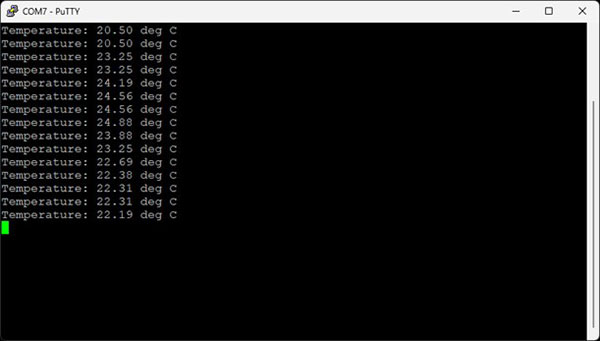
Yes, this program behaves exactly the same as the program we made for the i2c-tmp102 demo. However, we are now accomplishing the I2C reads and writes from within a custom-built Rust library that relies on generics and traits for full reusability!
If you would like a challenge, see if you can replace our demo library with the community-created tmp1x2 crate. You will need to remove the dependency line in Cargo.toml that points to our local crate and add the tmp1x2 library. You will also need to change some of the function calls in your main.rs. See here for my solution to this challenge.
In the next tutorial, we will cover lifetimes in Rust. As a result, I recommend reading section 10.3 in the Rust Book as well as tackling the lifetimes exercises in rustlings.
Find the full Intro to Embedded Rust series here.